
By Dan Harding, Learning Technology Officer Faculty of Humanities and Social Sciences, Keele University
Last summer, HumSS embarked on a review of its baseline course provision within the Keele Learning Environment (KLE), aiming to make each module an easier space to navigate for students. Previous attempts to introduce templates at an institutional level, combined with existing local practices, had seen some success. However, overall consistency remained patchy with navigation structures ranging from non-existent to overly complex and inaccessible.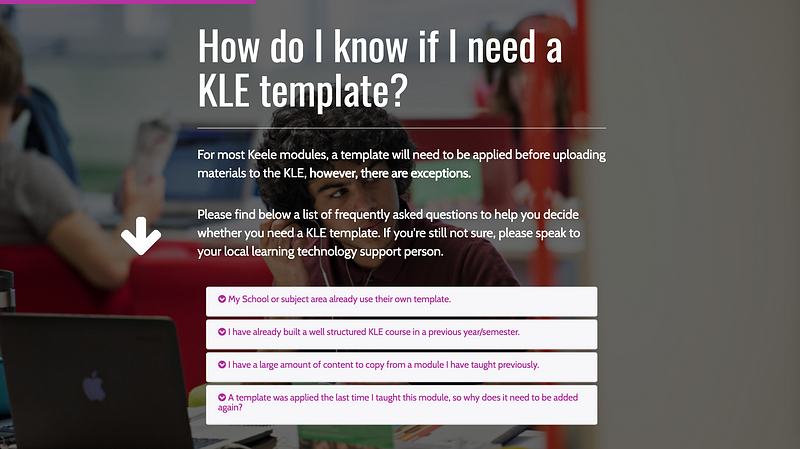 |
| Screenshot of online guidance available at https://www.keele.ac.uk/kletemplates. |
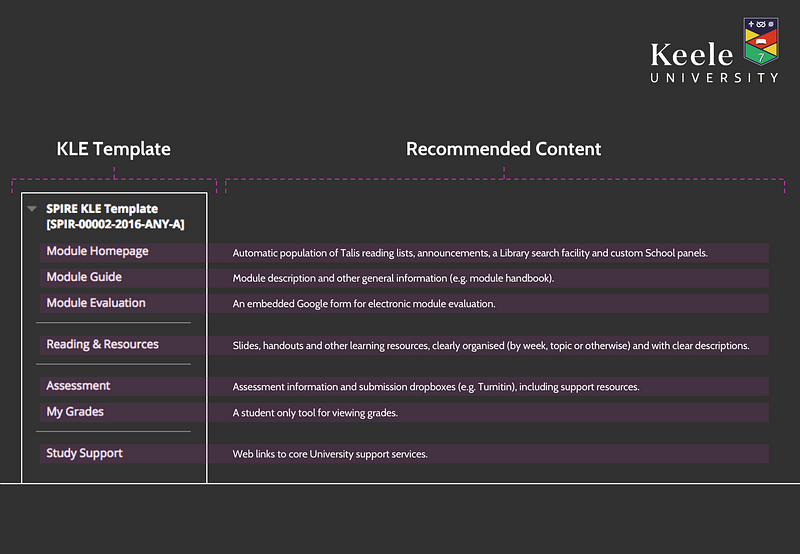 |
| Example infographic, demonstrating how to use the new template structure. |
Processes reliant upon commonly used tools within the KLE (e.g. Turnitin) also had the potential for improvement, particularly in relation to assessment. As the Faculty was moving towards electronic submission for summative assignments, the opportunity to create more standardised guidance would alleviate some of the issues often reported by staff and students. A network of TEL Champions, represented by academic and professional support staff from across the Faculty, would also be critical in understanding each school’s requirements.
Some of the main actions included:
The HumSS TEL Team meeting with TEL Champions to understand current practice, and to develop new, school-specific templates.
Exploring the possibilities for customising the Blackboard interface by manually altering some of its CSS. For example, making better use of ‘Review Status’ for acknowledging assignment submission requirements.
Revising the information at https://www.keele.ac.uk/kletemplates to feature downloadable templates for each school, and keep other areas of the University who use the generic template up to date.
Professional support staff taking responsibility for the initial setup of all KLE courses by applying a standard school template at the beginning of each semester.
To avoid a reoccurrence of the same issue, develop guidance materials that provide simple steps on how to keep courses intuitive and accessible.
Professional support staff taking responsibility for the initial setup of all KLE courses by applying a standard school template at the beginning of each semester.
To avoid a reoccurrence of the same issue, develop guidance materials that provide simple steps on how to keep courses intuitive and accessible.
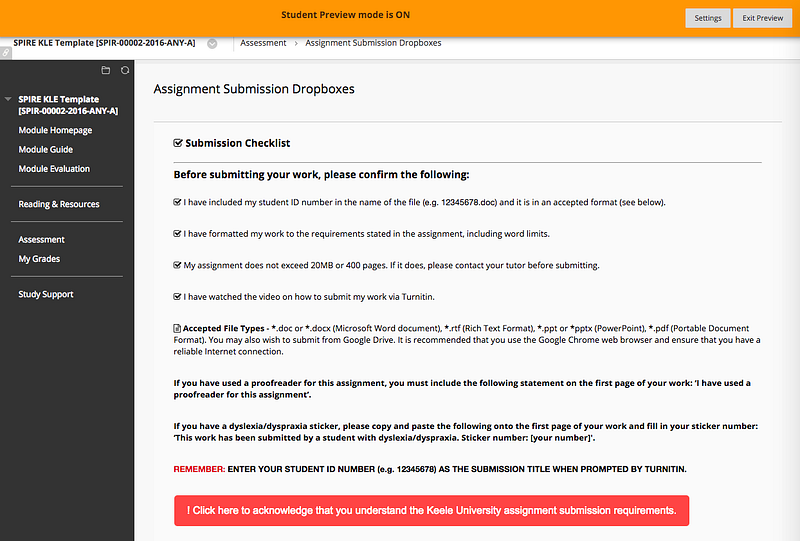 |
| A customised Blackboard Review Status for students acknowledging assignment requirements. |
The inclusion of a ‘Study Support’ folder, containing links to University support providers (e.g. the Library, Student’s Union, IT and Student Services) also directs students to services available in relation to their learning. This is accompanied by local sources of information such as school blogs and social media feeds that have been added as custom panels within each home page to keep students informed of extra curricula activities they may wish to know about.
Following a successful first year, there remains the potential for further work. By having templates in place, it offers a foundation for more collaboration with schools and support providers to target other areas for development; especially those identified in exercises such as the NSS, module evaluations and surveys related to the student digital experience. Also, it is hoped that by encouraging thoughtful course design and demystifying some of the features found within Blackboard, the KLE will continue its overall development as Keele’s main online learning environment.
For more information, please contact humss.lto@keele.ac.uk.
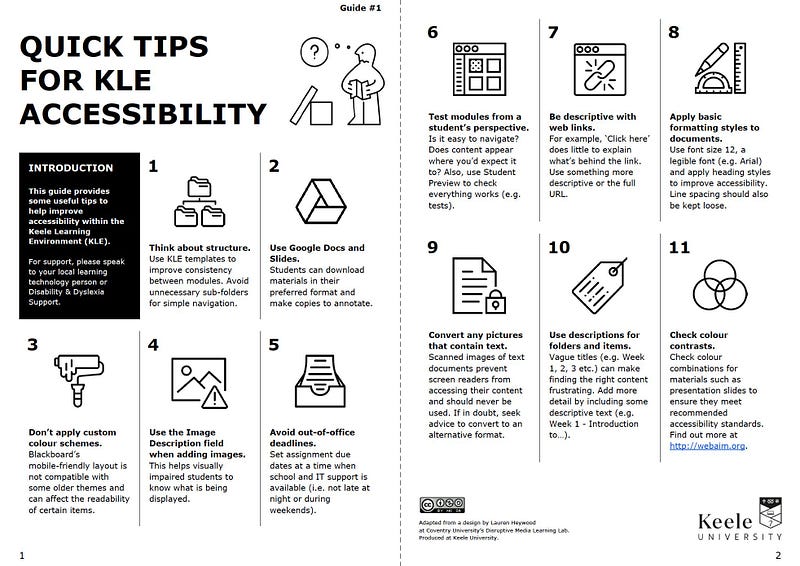 |
| Quick Tips for KLE Accessibility - A Guide for Staff |
For more information, please contact humss.lto@keele.ac.uk.

Back to Basics: Improving Accessibility in the Keele Learning Environment by Dan Harding, Keele University is licensed under a Creative Commons Attribution-NonCommercial-ShareAlike 4.0 International License.
Based on a work at lpdcsolutions.blogspot.co.uk.
